
AI & MCP
Connecting your own AI assistant to a workspace's data via MCP.
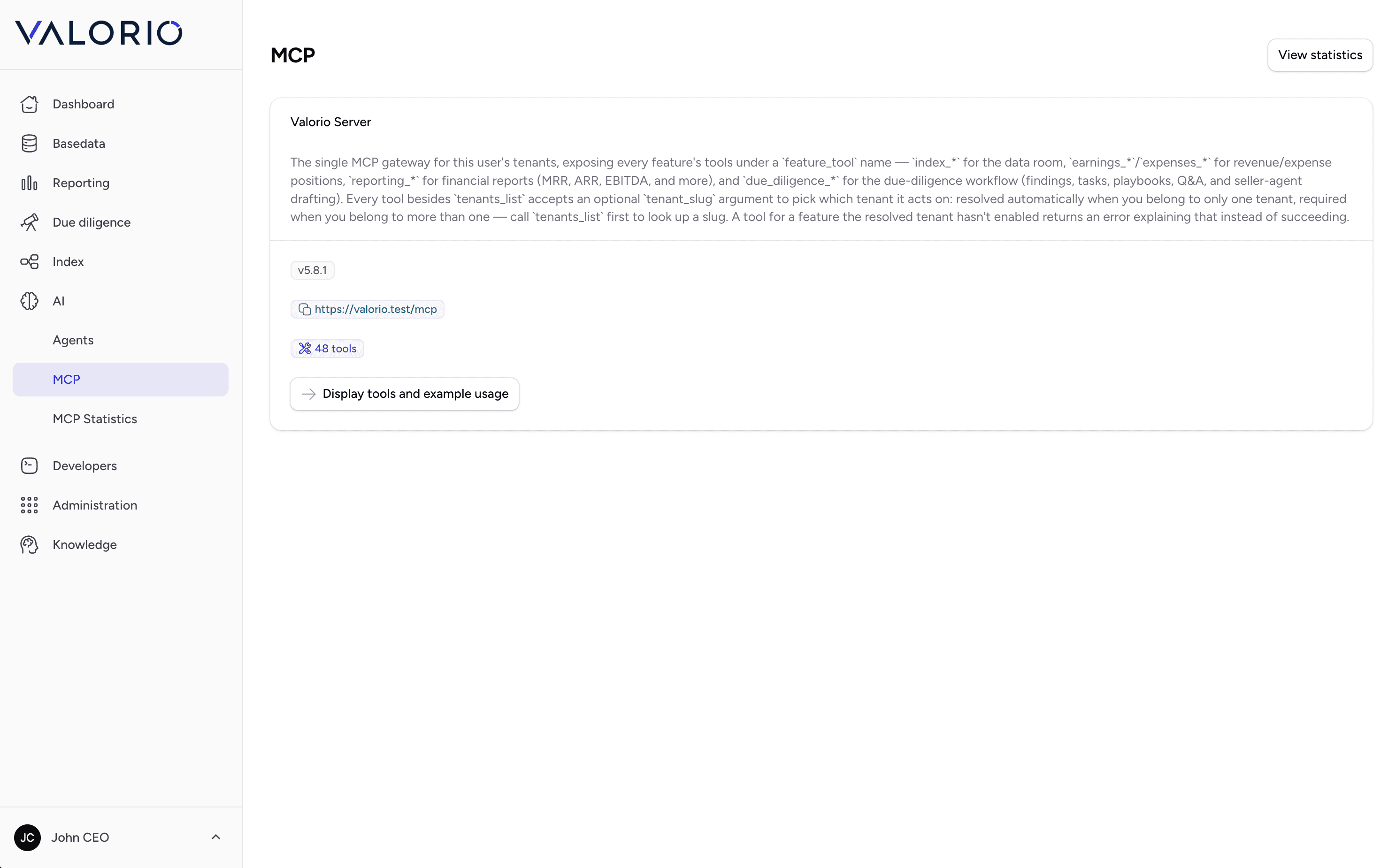
Every workspace exposes its own MCP (Model Context Protocol) server, so any MCP-compatible AI assistant — Claude, an internal agent your team has built, anything that speaks the protocol — can securely read a deal's data and, where enabled, act on it directly, instead of a team digging through folders or copying numbers by hand.
The MCP server
One dedicated server covers the whole workspace, with every tool namespaced by feature: earnings_* and expenses_* for the financial line items, reporting_* for the computed metrics (MRR, ARR, EBITDA, and more), index_* for the data room's folders and documents, and due_diligence_* for findings, playbooks, and the Q&A workflow — including dispatching the CFO, CLO, CTO, and CRO agents to draft an answer. The server enforces the exact same permissions a human user has in the UI; an MCP call is never a way to see or do more than that user's own role allows.
Click “Display tools and example usage” on the server card to see its full tool list without leaving the page — each tool's description alongside a plain-language example of a request it fulfils, translated into your workspace's own language.
Why connect an assistant
MCP turns VALORIO from a screen you visit into data your own tools can reason over — which changes what's practical to ask for.
- No copy-pasting between spreadsheets and the workspace — an assistant reads live numbers straight from Earnings, Expenses, and Reporting, so there's no stale export circulating.
- The same permissions as the UI — every call runs as the connected user, scoped to their role and their tenant. Connecting an assistant never grants it more than that person could already see or do by hand.
- Reasoning across a whole portfolio in one conversation — with tenants_list, a single prompt can pull the same metric from every portfolio company and compare them, something the UI only ever shows one workspace at a time.
- Read and write, not just read — anywhere an upsert tool exists (customers, invoices, positions, folders, files, findings, playbooks, Q&A), an assistant can file the update itself instead of a person re-entering it in the UI.
- No proprietary integration to build — MCP is a standard protocol, so Claude Desktop, Claude Code, and a homegrown agent all connect the same way.
Connecting your assistant
- 1Open AI · MCP in the workspace and copy the endpoint URL — one URL covers every feature, whether you need Earnings, Expenses, Reporting, Index, or Due Diligence tools.
- 2Add that endpoint to your assistant's MCP configuration — in Claude Code, running /mcp is enough to add and authenticate a server; other clients add the same URL under their own MCP settings.
- 3Authenticate the connection. VALORIO uses an OAuth-style login, the same flow behind the “Authentication successful. Connected to valorio.” message you see after running /mcp.
- 4If your account belongs to more than one tenant, have the assistant call tenants_list first and pass the right tenant_slug on every subsequent call — with a single tenant it's resolved automatically, so most users never need to think about it.
Earnings
The earnings tools cover customers, invoices, and revenue positions — the source records that the reporting tools turn into MRR, ARR, and every other metric.
- List customers (earnings_list_customers) — retrieve customer records for the resolved tenant, including the category and cluster used to group revenue.
- Upsert customers (earnings_upsert_customers) — create customers or update existing ones, e.g. reassigning one to a different category after a re-segmentation.
- List invoices (earnings_list_invoices) — retrieve billing records issued to customers, the source data behind the Revenue and Lines reports.
- Upsert invoices (earnings_upsert_invoices) — create or correct invoice records, such as backfilling a batch imported from an external billing system.
- List positions (earnings_list_positions) — retrieve individual revenue line items, the most granular earnings data, one row per recognized amount.
- Upsert positions (earnings_upsert_positions) — create or update revenue positions directly, useful for a source Reporting doesn't yet connect to natively.
Example: “List every customer in the Enterprise category with more than $5k in invoices this quarter, and flag any without a matching revenue position.”
Expenses
The expenses tools cover the cost side of the ledger — the data behind EBITDA, gross margin, and operating margin.
- List positions (expenses_list_positions) — retrieve expense line items for the resolved tenant.
- Upsert positions (expenses_upsert_positions) — create or update expense records, e.g. logging a one-off cost your assistant just found in an uploaded invoice.
Example: “Add a one-off $12,000 legal expense for March, then re-run EBITDA to see how much it moves the margin.”
Reporting
The reporting tools expose every computed metric described in Reporting as its own tool, plus a refresh tool to recompute them on demand.
- MRR (reporting_mrr) — monthly recurring revenue, with a statistical forecast for the months ahead.
- ARR (reporting_arr) — annual recurring revenue.
- ARPU (reporting_arpu) — average revenue per user.
- Rule of 40 (reporting_bqr) — growth rate plus profit margin, the standard health check for SaaS businesses.
- EBITDA (reporting_ebitda) — operating profit before interest, taxes, depreciation, and amortization.
- Gross margin (reporting_gross_margin) — revenue remaining after direct costs.
- Operating margin (reporting_operating_margin) — revenue remaining after operating expenses.
- Revenue (reporting_revenue) — total revenue, including non-recurring income that MRR/ARR exclude.
- Revenue by customer category (reporting_revenue_by_customer_category) — revenue split across customer categories.
- Revenue by customer cluster (reporting_revenue_by_customer_cluster) — revenue split across behavior-based customer clusters.
- LTV (reporting_ltv) — estimated lifetime value per customer.
- LTV by customer category (reporting_ltv_by_customer_category) — lifetime value broken down by category.
- LTV by customer cluster (reporting_ltv_by_customer_cluster) — lifetime value broken down by cluster.
- Lines (reporting_lines) — the line-item breakdown underneath every other report, organized by revenue category.
- Chapter ratios (reporting_chapter_ratios) — performance ratios for each defined business area, rated on track, needs attention, or at risk.
- Refresh (reporting_refresh) — recompute a tenant's reports on demand from the latest earnings and expenses data, instead of waiting for the next scheduled run.
Example: “What's our Rule of 40 this quarter, and is it being carried more by growth or by margin?”
Data room (Index)
The index tools cover the data room's folders and documents, plus a natural-language query tool over everything indexed inside them.
- List folders (index_list_folders) — retrieve the data room's folder structure for the resolved tenant.
- List files (index_list_files) — retrieve the documents in a folder, or across the whole data room.
- Get file (index_get_file) — retrieve a single document's content, summary, and metadata by id.
- Upsert folders (index_upsert_folders) — create or update folders, e.g. provisioning a new TX folder for a workstream.
- Upsert files (index_upsert_files) — register a document in a folder, or update the metadata of an existing one.
- Query journal (index_query_journal) — ask a natural-language question across everything indexed in the data room and get back the passages that answer it, each traceable to its source document.
Example: “Search the Legal folder for any change-of-control clauses and tell me which contracts they're in.”
Due diligence
The due-diligence tools cover findings, playbooks, the buyer Q&A queue, and the company profiles the specialist agents draw on when they draft an answer.
- List findings / upsert findings (due_diligence_list_findings, due_diligence_upsert_findings) — read or write AI-detected findings, each with a severity, a confidence level, and an evidence trail back to the source data.
- List playbooks / upsert playbooks (due_diligence_list_playbooks, due_diligence_upsert_playbooks) — read playbooks, or file one for a finding — each playbook is tied to exactly one finding, targets one Valuation Score dimension with a points estimate, and a finding can have only one.
- List questions / upsert questions (due_diligence_list_questions, due_diligence_upsert_questions) — read or add buyer due-diligence questions in the Q&A queue.
- List answers / upsert answers (due_diligence_list_answers, due_diligence_upsert_answers) — read drafted answers, or write one directly instead of dispatching an agent.
- Approve answer (due_diligence_approve_answer) — mark a drafted answer as reviewed and ready to send to the buyer.
- List sales profile / upsert sales profile (due_diligence_list_sales_profile, due_diligence_upsert_sales_profile) — read or update the commercial/GTM profile the CRO agent draws on.
- List tech profile / upsert tech profile (due_diligence_list_tech_profile, due_diligence_upsert_tech_profile) — read or update the technical/architecture profile the CTO agent draws on.
- Trigger agent (due_diligence_trigger_agent) — dispatch a single specialist agent (CFO, CLO, CTO, or CRO) to draft an answer to one question.
- Trigger swarm (due_diligence_trigger_swarm) — dispatch more than one specialist agent on the same question and run the conflict-check and M&A Advisor flow described in Due diligence.
Example: “Trigger the CFO and CLO agents in swarm mode on question 14, and tell me if they disagree.”
A worked example: a cross-portfolio dashboard
A single prompt like this is what MCP is for — it needs data from several tenants and several report types at once, something no one screen in the UI shows:
“Let's make a comparison dashboard for all my portfolio companies, using the MRR, ARPU, EBITDA, and Rule of 40.”
To answer it, an assistant calls tenants_list to enumerate the portfolio, then for each tenant calls reporting_mrr, reporting_arpu, reporting_ebitda, and reporting_bqr with that tenant's slug, and assembles the results into one comparison table or chart — the same task that would otherwise mean opening each workspace in turn and copying four numbers out of each.
Because every call is scoped to the connected user's own tenants and role, the dashboard only ever includes portfolio companies that user actually has access to.